🔋 Power Guide

Yay!Timer Battery Optimization Guide

Maximize battery life while keeping your timers running reliably. Learn how Yay!Timer's smart power management works automatically – and what you can tweak for even better efficiency.

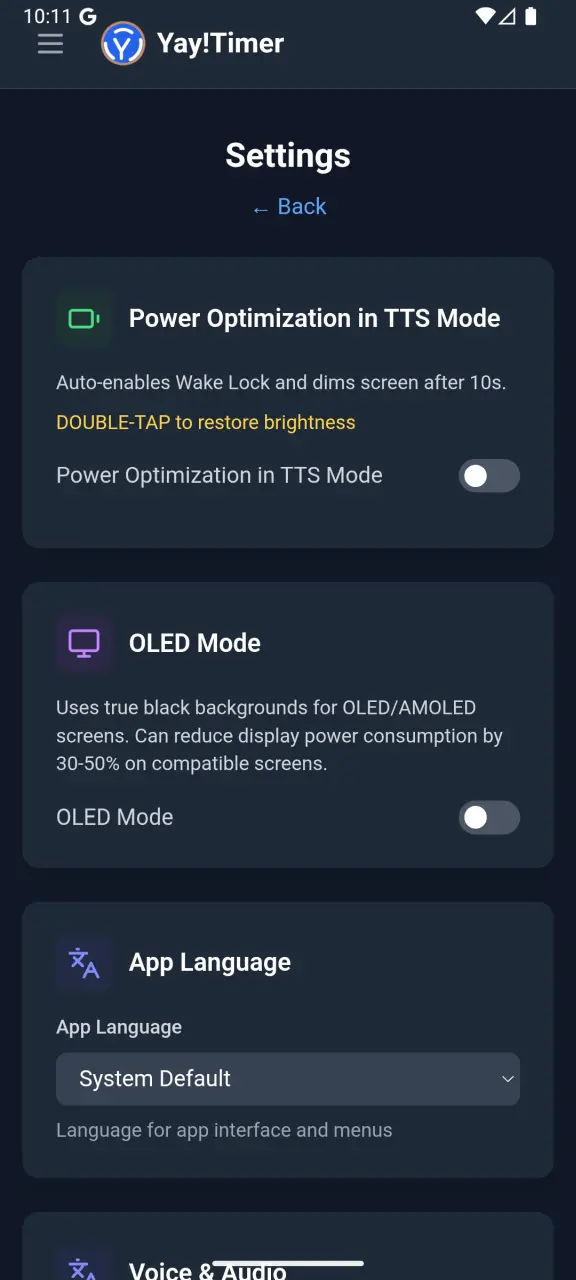
Settings

Access all power optimization features from the Settings menu

Yay!Timer Settings page showing Battery Saver options
1

Power Optimization (Screen Dimming)

Automatically dims the screen after 10 seconds of inactivity. Reduces display power by 30-70% while keeping the timer visible.

2

OLED Mode

Enables true black backgrounds for OLED/AMOLED screens. Black pixels = zero power consumption. Up to 50% display savings.

3

Only Visible View Active (Memory Saver)

Completely unloads inactive views from memory. Useful for older devices with limited RAM. Not needed on modern phones.

4

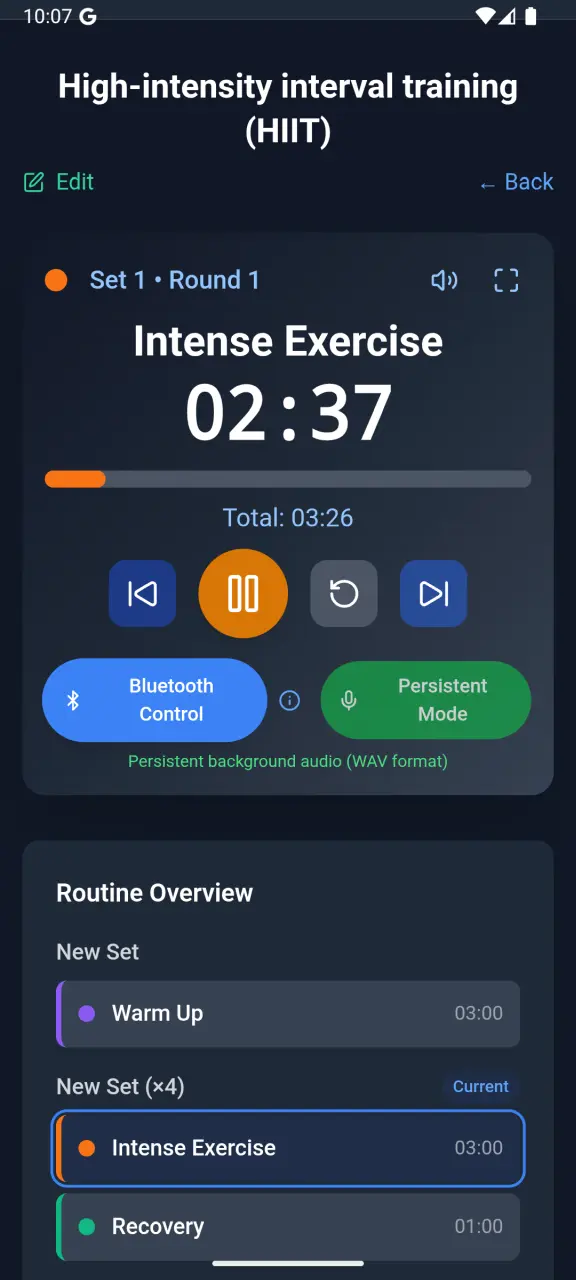
Persistent Mode

The core feature that keeps timers running reliably in the background. Uses an isolated media service that survives app kills.

💡 Tip: You can quickly enable/disable Persistent Mode directly on the interval timer view.

đŸ–Ĩī¸ Display Optimization

OLED True Black Mode

If your screen needs to stay on during workouts, OLED Mode is your best friend. On AMOLED displays, black pixels are completely off – consuming zero power.

Yay!Timer with OLED Mode OFF - dark gray background

OLED Mode OFF

Dark gray backgrounds (#111827)

Yay!Timer with OLED Mode ON - true black background

OLED Mode ON

True black backgrounds (#000000)

30-50%

Display Power Reduction

On OLED/AMOLED screens

0W

Black Pixel Power

Pixels are literally off

📱

Auto-Detection

App hints if you have OLED

💡

When to use OLED Mode

Enable OLED Mode when you need the screen to stay on during workouts (e.g., gym displays, group classes). If you use Bluetooth headphones and let the screen turn off, OLED Mode won't provide additional savings – the screen is already off.

Automatic Screen Dimming

The Power Optimization feature automatically dims the screen after 10 seconds of inactivity – perfect for hands-free workouts where you glance at the timer occasionally.

💡 How It Works

  • ✓ Dims to 5-35% brightness (configurable) after 10 seconds
  • ✓ Double-tap anywhere to restore full brightness
  • ✓ Timer remains visible and running
  • ✓ Automatically enables wake lock to keep screen awake

📊 Power Savings

Dimmed to 35% ~30-40% savings
Dimmed to 10% ~50-60% savings
Dimmed to 5% ~60-70% savings
⚡ Always Active

Built-in Power Management

These optimizations run automatically – no configuration needed. They're why Yay!Timer is battery-efficient out of the box.

đŸ‘ī¸

View-Based Suspension

When you switch to a different view (e.g., from Stopwatch to Interval Timer), the inactive view's update loops are automatically suspended.

✓ Zero CPU usage for hidden views

🔒

User-Controlled Wake Lock

Wake lock can be enabled/disabled by the user in Settings or via "Power Optimization in TTS Mode". You control when the screen stays awake.

✓ Full user control over screen wake

🔕

No Idle Notifications

Unlike some apps, Yay!Timer doesn't show a persistent "Timer Ready" notification. No background service when idle.

✓ Zero resource usage at rest

đŸŽĩ

Audio Focus Management

Proper audio focus handling prevents "audio wars" with other apps, reducing CPU overhead from audio mixing conflicts.

✓ Clean audio without conflicts

đŸ“Ļ

Isolated Media Service

Persistent Mode runs in a separate process, allowing Android to manage memory efficiently. Terminated immediately when not needed.

✓ Efficient background playback

⏰

AlarmManager for Countdown

The Countdown Timer uses Android's AlarmManager instead of a continuous service – more battery efficient for longer durations.

✓ Bypasses Doze mode reliably

Memory Saver: Only Visible View Active

This optional setting is designed for older devices with limited RAM. It completely unloads inactive views from memory, freeing up resources.

Feature View-Based Suspension Only Visible View Active
What it does Suspends update loops Completely unloads components
CPU savings 100% 100%
Memory freed No Yes
State preserved Yes No
Always active Yes (automatic) Optional setting
Best for All devices Low-memory devices
â„šī¸

When to enable "Only Visible View Active"

Only enable this if your device has limited RAM (2GB or less) or you experience slowdowns when switching between timer views. Modern devices with 4GB+ RAM don't need this – View-Based Suspension already provides all the battery savings.

Android Battery Optimization Warning

Android's built-in battery optimization can interfere with timer reliability. If you see a warning banner, here's what it means and how to fix it.

âš ī¸ Why the Warning Appears

When Android's battery optimization is enabled for Yay!Timer, the OS may:

  • ● Kill the app during long workouts
  • ● Delay or skip voice announcements
  • ● Stop countdown alarms from firing

✅ How to Fix It

  1. 1. Tap "Fix Now" on the warning banner
  2. 2. Android will open battery settings
  3. 3. Select "Don't optimize" for Yay!Timer
  4. 4. The warning will disappear

This doesn't increase battery drain – it just prevents Android from killing the app during active workouts.

Audio Mode Battery Impact

Choose the audio mode that balances reliability and battery for your workout style

🔊 Media Audio (Persistent)

Most Reliable & Efficient – Uses audio playback to keep the app alive with screen off.

  • ✓ Works with Bluetooth
  • ✓ Never killed by Android
  • ✓ Works for hours with screen off
⭐ Lowest battery usage (screen off)

đŸ—Ŗī¸ TTS Audio

Screen-On Mode – Uses system Text-to-Speech for announcements.

  • ✓ Clear announcements
  • ● Needs screen ON to work reliably
  • ● Android may kill in 5-10 min with screen off
Higher consumption than Persistent Mode

🔇 Silent Mode

Maximum Savings – Visual-only notifications with no audio.

  • ✓ Lowest battery usage
  • ✓ Great for quiet places
  • ● Requires screen visibility

Quick Battery Tips

Expert recommendations for getting the most out of your battery

🎧

Use Bluetooth? Use Persistent Mode

Persistent Mode is essential for reliable Bluetooth audio. The screen can turn off – audio keeps playing through your headphones.

đŸ–Ĩī¸

Screen Staying On? Enable OLED Mode

If you mount your phone for gym displays or group classes, OLED Mode + Screen Dimming is the best combo for power savings.

🔋

Exclude from Battery Optimization

This doesn't increase drain – it prevents Android from killing your timer mid-workout. Essential for TTS mode.

📱

Old Phone? Enable Memory Saver

"Only Visible View Active" frees up RAM by unloading inactive views. Great for 2GB devices but unnecessary on modern phones.

💡

Combine Dimming + OLED

For maximum screen-on savings, enable both Screen Dimming and OLED Mode. True black + low brightness = minimal display power.

âąī¸

Long Workouts? Persistent Mode is Best

For long interval workouts, Persistent Mode works for hours with the screen off. TTS mode may be killed by Android after 5-10 minutes when the screen is off.

Related Guides

Ready for Battery-Efficient Workouts?

Download Yay!Timer – optimized out of the box, with power-saving features when you need them

Get it on Google Play